THE SYLLABUS TASK
What you need to build
Write a program that creates a user interface to perform integer divisions. The user enters two numbers in the text fields, Num1 and Num2. The division of Num1 and Num2 is displayed in the Result field when the Divide button is clicked. If Num1 or Num2 were not an integer, the program would throw a Number Format Exception. If Num2 were Zero, the program would throw an Arithmetic Exception Display the exception in a message dialog box.
Full syllabus requirements: classes, fields and methods
Desktop text fields Num1 and Num2 accept 32-bit integers. Click Divide to show the truncated integer quotient in read-only Result. Invalid text or zero divisor is reported in a message dialog.
UNDERSTAND THE IDEA
Explanation
The event handler trims and parses the two fields with Integer.parseInt, then performs integer division. NumberFormatException covers malformed or out-of-range integers; ArithmeticException covers a zero divisor.
Each catch clears a previous result before opening its corresponding JOptionPane error dialog. This prevents a stale valid result from appearing to belong to failed input.
TURN THE IDEA INTO STEPS
Step-by-step algorithm
- Read and parse Num1 and Num2 on Divide.
- Perform integer division.
- Show the quotient only on success.
- Catch malformed integers and clear Result.
- Catch divisor zero and display the corresponding dialog.
SEE THE CORE OPERATION
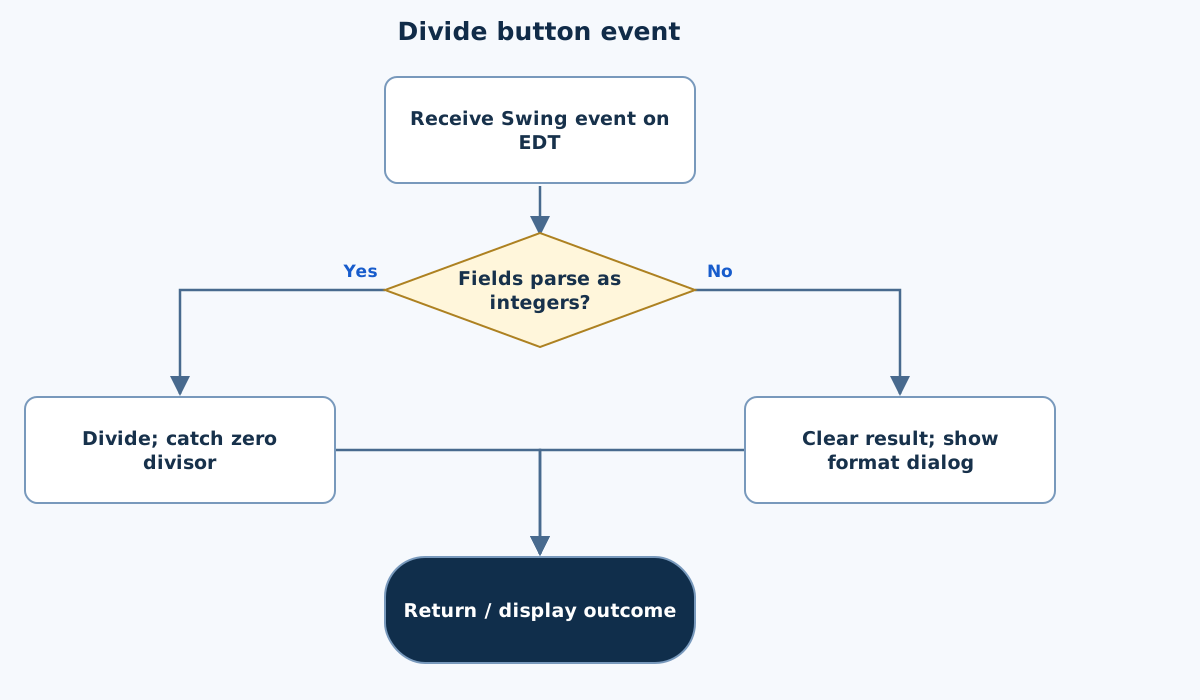
Flowchart
This chart focuses on the named operation or core OOP decision. Diamonds show conditions; labeled branches show outcomes. Read it with the complete algorithm and source for input handling and other operations. Scroll within the diagram on a phone.
Divide button event
Main.java
import javax.swing.*;
import java.awt.*;
import java.awt.event.*;
import java.util.Locale;

public class Main {
    static JPanel root(String title) {
        for(String key:new String[]{"Label.font","Button.font","RadioButton.font","CheckBox.font","TextField.font","TextArea.font","ComboBox.font"})UIManager.put(key,new Font(Font.SANS_SERIF,Font.PLAIN,18));
        JPanel panel=new JPanel(new BorderLayout(12,12));panel.setBorder(BorderFactory.createEmptyBorder(20,20,20,20));
        JLabel heading=new JLabel(title);heading.setFont(new Font(Font.SANS_SERIF,Font.BOLD,24));panel.add(heading,BorderLayout.NORTH);return panel;
    }
    static void show(String title,JPanel panel) {
        JFrame frame=new JFrame(title);frame.setDefaultCloseOperation(JFrame.EXIT_ON_CLOSE);frame.setContentPane(panel);frame.pack();frame.setLocationRelativeTo(null);frame.setVisible(true);
    }

    static int divide(String a,String b){return Integer.parseInt(a.trim())/Integer.parseInt(b.trim());}
    // The flag is used by off-screen tests; normal main always enables dialogs.
    public static JPanel createPanel(){return createPanel(true);}
    static JPanel createPanel(boolean dialogs){
        JPanel panel=root("Integer Division"),form=new JPanel(new GridLayout(0,2,10,12));
        JTextField first=new JTextField(20),second=new JTextField(20),result=new JTextField(20);first.setName("num1");second.setName("num2");result.setName("result");result.setEditable(false);
        form.add(new JLabel("Num1"));form.add(first);form.add(new JLabel("Num2"));form.add(second);form.add(new JLabel("Result"));form.add(result);panel.add(form,BorderLayout.CENTER);
        JButton button=new JButton("Divide");panel.add(button,BorderLayout.SOUTH);
        button.addActionListener(e->{
            try{result.setText(Integer.toString(divide(first.getText(),second.getText())));}
            catch(NumberFormatException error){result.setText("");if(dialogs)JOptionPane.showMessageDialog(panel,"NumberFormatException: enter valid 32-bit integers.","Invalid input",JOptionPane.ERROR_MESSAGE);}
            catch(ArithmeticException error){result.setText("");if(dialogs)JOptionPane.showMessageDialog(panel,"ArithmeticException: division by zero.","Division error",JOptionPane.ERROR_MESSAGE);}
        });return panel;
    }
    public static void main(String[] args){SwingUtilities.invokeLater(()->show("Integer Division",createPanel()));}

}
Copy a source file or download the project to preserve its file names.
USE THE RIGHT ENVIRONMENT
How to compile and run
Install a JDK (Java 11 or newer; JDK 17 is suitable), extract this project’s ZIP into its own folder, then open a terminal in that folder.
javac -encoding UTF-8 Main.java
java Main
This program opens a Swing desktop window. Run on your computer with a graphical desktop. A browser compiler or headless server cannot normally display this window. No console sample input is required.
Each experiment has its own folder because many use the public class Main. Compile and run one experiment at a time.
UNDERSTAND THE JAVA CODE
Line-by-line explanation
These steps follow the exact Java source above. Related statements are grouped; line numbers count blank lines and restart for each file. Start with main to follow execution, then open the constructors, methods or event handlers it uses.
Main.java
Lines 1–6Import Swing components, layouts and event types
import javax.swing.*;
import java.awt.*;
import java.awt.event.*;
import java.util.Locale;

public class Main {
javax.swing supplies buttons, labels, panels and frames. java.awt supplies layouts, colours and fonts. java.awt.event supplies listener/event types. Locale is available where text formatting needs it. Main matches the source filename.
Lines 7–8Set readable component fonts in a reusable panel helper
    static JPanel root(String title) {
        for(String key:new String[]{"Label.font","Button.font","RadioButton.font","CheckBox.font","TextField.font","TextArea.font","ComboBox.font"})UIManager.put(key,new Font(Font.SANS_SERIF,Font.PLAIN,18));
root configures the selected UIManager font keys to an 18-point sans-serif font before creating the form’s components. This affects the Java application, not the website’s CSS.
Lines 9–11Create a padded root panel with a heading
        JPanel panel=new JPanel(new BorderLayout(12,12));panel.setBorder(BorderFactory.createEmptyBorder(20,20,20,20));
        JLabel heading=new JLabel(title);heading.setFont(new Font(Font.SANS_SERIF,Font.BOLD,24));panel.add(heading,BorderLayout.NORTH);return panel;
    }
BorderLayout places the heading in NORTH and leaves CENTER for each experiment’s form. The empty border adds padding; the heading uses a larger bold font. Return the JPanel for further assembly.
Lines 12–14Show the completed panel in a desktop window
    static void show(String title,JPanel panel) {
        JFrame frame=new JFrame(title);frame.setDefaultCloseOperation(JFrame.EXIT_ON_CLOSE);frame.setContentPane(panel);frame.pack();frame.setLocationRelativeTo(null);frame.setVisible(true);
    }
show creates a JFrame, installs its content, packs it to component sizes, centres it and makes it visible. EXIT_ON_CLOSE ends this demonstration application when its window closes. The desktop main calls this helper on the event-dispatch thread.
Line 16Parse two complete integer strings and divide
static int divide(String a,String b){return Integer.parseInt(a.trim())/Integer.parseInt(b.trim());}Trim each field and use Integer.parseInt, then integer division. Invalid or out-of-int-range text throws NumberFormatException; a zero divisor throws ArithmeticException. An ordinary result such as 7/2 is 3.
Lines 17–19Offer a normal factory and a testable overload
    // The flag is used by off-screen tests; normal main always enables dialogs.
    public static JPanel createPanel(){return createPanel(true);}
    static JPanel createPanel(boolean dialogs){
The public no-argument createPanel calls createPanel(true). The boolean overload can suppress modal error dialogs for off-screen tests while leaving computation and field updates in the same listener.
Lines 20–23Build input fields, read-only output and an action button
        JPanel panel=root("Integer Division"),form=new JPanel(new GridLayout(0,2,10,12));
        JTextField first=new JTextField(20),second=new JTextField(20),result=new JTextField(20);first.setName("num1");second.setName("num2");result.setName("result");result.setEditable(false);
        form.add(new JLabel("Num1"));form.add(first);form.add(new JLabel("Num2"));form.add(second);form.add(new JLabel("Result"));form.add(result);panel.add(form,BorderLayout.CENTER);
        JButton button=new JButton("Divide");panel.add(button,BorderLayout.SOUTH);
Create labelled Num1/Num2 fields, a named result field and Divide. result.setEditable(false) prevents manual edits but permits updates by the program.
Lines 24–25Run division when the user activates the button
        button.addActionListener(e->{
            try{result.setText(Integer.toString(divide(first.getText(),second.getText())));}
The lambda reads current field text, calls divide and writes its successful integer result. Creating the listener itself does not perform the division.
Lines 26–27Distinguish format errors from zero division
            catch(NumberFormatException error){result.setText("");if(dialogs)JOptionPane.showMessageDialog(panel,"NumberFormatException: enter valid 32-bit integers.","Invalid input",JOptionPane.ERROR_MESSAGE);}
            catch(ArithmeticException error){result.setText("");if(dialogs)JOptionPane.showMessageDialog(panel,"ArithmeticException: division by zero.","Division error",JOptionPane.ERROR_MESSAGE);}
Both error paths clear old output. Show the appropriate JOptionPane only when dialogs is true. Catch order keeps the two different causes and their messages clear.
Lines 28–29Return the panel with its listener installed
        });return panel;
    }
The callback closes, then createPanel returns the assembled UI. Later button clicks use the captured field references.
Lines 30–32Create and show Swing UI on the event-dispatch thread
    public static void main(String[] args){SwingUtilities.invokeLater(()->show("Integer Division",createPanel()));}

}
SwingUtilities.invokeLater schedules the lambda on Swing’s event-dispatch thread. The lambda creates the panel and calls show. This main needs a graphical desktop; the panel and its event handlers are separate from console input.
FOLLOW THE STATE
Dry run
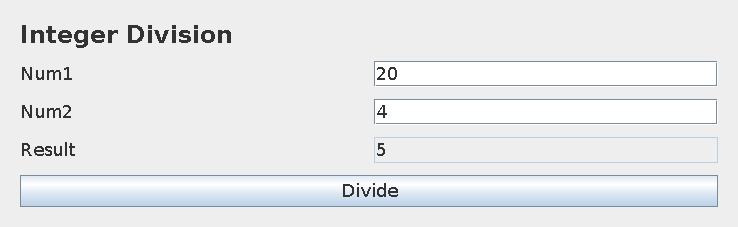
- Num1=20 and Num2=4 display Result=5.
- Replacing Num1 with bad triggers the number-format error.
- Num2=0 triggers the arithmetic error.
- In both error cases the previous result is cleared.
CHECK THE BEHAVIOUR
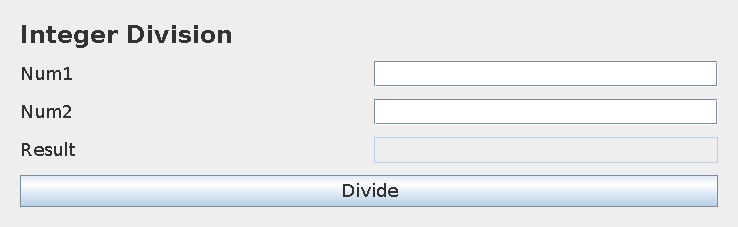
GUI preview & checks
These panels were rendered from this exact Java source. Event handlers were checked without a desktop window; window decorations and native error-dialog appearance can differ on your computer.
Try these checks
- Num1=20 and Num2=4 display Result=5.
- Replacing Num1 with bad triggers the number-format error.
- Num2=0 triggers the arithmetic error.
- In both error cases the previous result is cleared.
Common mistakes
- Catch NumberFormatException and ArithmeticException separately.
- Result should be read-only.
- Clear stale output before displaying a failed calculation.
WHY THIS GROWTH RATE?
Time and space complexity
O(L1+L2) input parsing; O(1) division and application state.
Parsing inspects the characters in both fields. Once parsed, native int division is a fixed-size operation.
Creating a modal dialog and rendering the window are GUI framework work. The computation itself does not depend on the quotient’s magnitude.
These bounds describe the implemented data processing. Input/output text length, scheduling, framework rendering and runtime/library internals are identified separately where they matter. Educational limits bound the actual examples.
PREPARE FOR YOUR LAB VIVA
Related viva questions & answers
Try answering aloud, then expand to check your reasoning. Questions focus on this program’s classes, state and behavior.
What input produces NumberFormatException in this GUI?
Nonnumeric text or a value outside the 32-bit int range causes Integer.parseInt to fail. Empty input fails as well.
Why is Result made read-only?
It is calculated output. Letting users edit it would make displayed text ambiguous about whether it came from a successful division.
Why is the old result cleared before an error dialog?
The previous quotient belongs to different inputs. Clearing prevents that stale value from being mistaken for the failed operation’s result.
What does JOptionPane contribute to the exception handling?
It presents a message dialog containing the appropriate exception description. The catch still controls application state and decides which message to show.
Why are surrounding spaces trimmed before parsing?
Users can accidentally enter spaces around an integer. Trimming accepts that harmless formatting while still rejecting invalid integer contents.
What does 7 divided by 2 display in this form?
It displays 3 because the computation uses int division. A fractional quotient would require a different numeric type and a changed exercise contract.