THE SYLLABUS TASK
What you need to build
Create a Java Swing application to design a Student Registration Form.
Full syllabus requirements: classes, fields and methods
Desktop interaction. Complete name/email/contact/address, select gender, one or more courses and Online/Offline mode. Contact uses an illustrative 10-digit rule. Submit shows a summary; Reset clears; Exit closes the window.
UNDERSTAND THE IDEA
Explanation
The form combines text fields, a combo box, independent course checkboxes and mutually exclusive mode radio buttons. Their different selection models match the syllabus’s component requirements.
Submit rejects missing fields, basic email-format errors and incomplete selections before showing a registration summary. Reset restores placeholder and unselected states. No student record is stored beyond the current panel.
TURN THE IDEA INTO STEPS
Step-by-step algorithm
- Create the required controls and actions.
- Read field values on Submit.
- Validate text formats and required selections.
- Display a complete summary only after validation.
- Reset all fields or dispose the containing window on Exit.
SEE THE CORE OPERATION
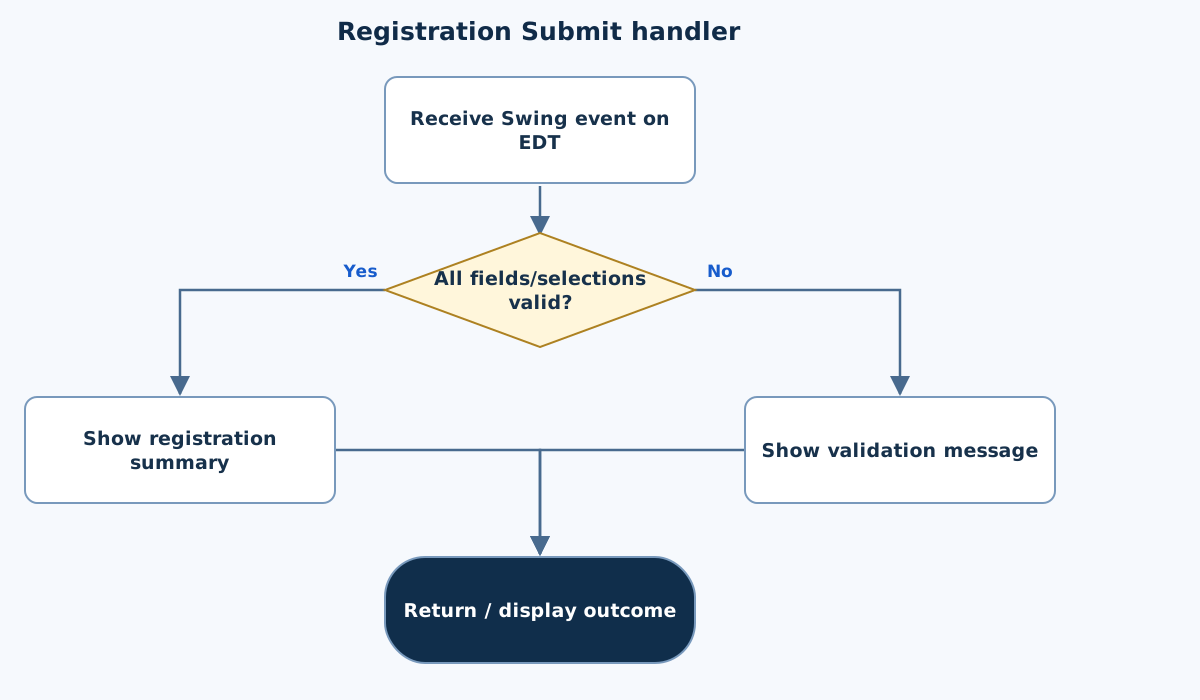
Flowchart
This chart focuses on the named operation or core OOP decision. Diamonds show conditions; labeled branches show outcomes. Read it with the complete algorithm and source for input handling and other operations. Scroll within the diagram on a phone.
Registration Submit handler
Main.java
import javax.swing.*;
import java.awt.*;
import java.awt.event.*;
import java.util.Locale;

public class Main {
    static JPanel root(String title) {
        for(String key:new String[]{"Label.font","Button.font","RadioButton.font","CheckBox.font","TextField.font","TextArea.font","ComboBox.font"})UIManager.put(key,new Font(Font.SANS_SERIF,Font.PLAIN,18));
        JPanel panel=new JPanel(new BorderLayout(12,12));panel.setBorder(BorderFactory.createEmptyBorder(20,20,20,20));
        JLabel heading=new JLabel(title);heading.setFont(new Font(Font.SANS_SERIF,Font.BOLD,24));panel.add(heading,BorderLayout.NORTH);return panel;
    }
    static void show(String title,JPanel panel) {
        JFrame frame=new JFrame(title);frame.setDefaultCloseOperation(JFrame.EXIT_ON_CLOSE);frame.setContentPane(panel);frame.pack();frame.setLocationRelativeTo(null);frame.setVisible(true);
    }

    public static JPanel createPanel(){
        JPanel panel=root("Student Registration"),form=new JPanel(new GridLayout(0,2,10,10));
        String[] labels={"Name","Email","Contact","Address"};JTextField[] fields=new JTextField[4];
        for(int i=0;i<4;i++){form.add(new JLabel(labels[i]));fields[i]=new JTextField(25);fields[i].setName(labels[i].toLowerCase(Locale.ROOT));form.add(fields[i]);}
        JComboBox<String> gender=new JComboBox<>(new String[]{"Select gender","Male","Female","Other"});gender.setName("gender");form.add(new JLabel("Gender"));form.add(gender);
        JPanel courses=new JPanel(new GridLayout(2,2));JCheckBox[] choices=new JCheckBox[4];String[] names={"Java","Python","Data Science","AI"};
        for(int i=0;i<4;i++){choices[i]=new JCheckBox(names[i]);courses.add(choices[i]);}form.add(new JLabel("Courses"));form.add(courses);
        JRadioButton online=new JRadioButton("Online"),offline=new JRadioButton("Offline");ButtonGroup mode=new ButtonGroup();mode.add(online);mode.add(offline);JPanel modes=new JPanel();modes.add(online);modes.add(offline);form.add(new JLabel("Mode"));form.add(modes);
        JTextArea output=new JTextArea(5,42);output.setName("summary");output.setEditable(false);output.setLineWrap(true);output.setWrapStyleWord(true);
        JPanel center=new JPanel(new BorderLayout(10,10));center.add(form,BorderLayout.NORTH);center.add(new JScrollPane(output),BorderLayout.CENTER);panel.add(center,BorderLayout.CENTER);
        JButton submit=new JButton("Submit"),reset=new JButton("Reset"),exit=new JButton("Exit");JPanel buttons=new JPanel();buttons.add(submit);buttons.add(reset);buttons.add(exit);panel.add(buttons,BorderLayout.SOUTH);
        submit.addActionListener(e->{
            for(JTextField field:fields)if(field.getText().trim().isEmpty()){output.setText("Complete all text fields.");return;}
            if(!fields[1].getText().trim().matches("[^\\s@]+@[^\\s@]+\\.[^\\s@]+")){output.setText("Enter a valid email format.");return;}
            if(!fields[2].getText().trim().matches("[0-9]{10}")){output.setText("Contact must contain 10 digits.");return;}
            StringBuilder selected=new StringBuilder();for(JCheckBox choice:choices)if(choice.isSelected()){if(selected.length()>0)selected.append(", ");selected.append(choice.getText());}
            if(gender.getSelectedIndex()==0||mode.getSelection()==null||selected.length()==0){output.setText("Select gender, at least one course and a learning mode.");return;}
            output.setText("Registered: "+fields[0].getText().trim()+"\nEmail: "+fields[1].getText().trim()+"\nContact: "+fields[2].getText().trim()+"\nAddress: "+fields[3].getText().trim()+"\nGender: "+gender.getSelectedItem()+"\nCourses: "+selected+"\nMode: "+(online.isSelected()?"Online":"Offline"));
        });
        reset.addActionListener(e->{for(JTextField field:fields)field.setText("");gender.setSelectedIndex(0);for(JCheckBox choice:choices)choice.setSelected(false);mode.clearSelection();output.setText("");});
        exit.addActionListener(e->{Window window=SwingUtilities.getWindowAncestor(panel);if(window!=null)window.dispose();});return panel;
    }
    public static void main(String[] args){SwingUtilities.invokeLater(()->show("Student Registration",createPanel()));}

}
Copy a source file or download the project to preserve its file names.
USE THE RIGHT ENVIRONMENT
How to compile and run
Install a JDK (Java 11 or newer; JDK 17 is suitable), extract this project’s ZIP into its own folder, then open a terminal in that folder.
javac -encoding UTF-8 Main.java
java Main
This program opens a Swing desktop window. Run on your computer with a graphical desktop. A browser compiler or headless server cannot normally display this window. No console sample input is required.
Each experiment has its own folder because many use the public class Main. Compile and run one experiment at a time.
UNDERSTAND THE JAVA CODE
Line-by-line explanation
These steps follow the exact Java source above. Related statements are grouped; line numbers count blank lines and restart for each file. Start with main to follow execution, then open the constructors, methods or event handlers it uses.
Main.java
Lines 1–6Import Swing components, layouts and event types
import javax.swing.*;
import java.awt.*;
import java.awt.event.*;
import java.util.Locale;

public class Main {
javax.swing supplies buttons, labels, panels and frames. java.awt supplies layouts, colours and fonts. java.awt.event supplies listener/event types. Locale is available where text formatting needs it. Main matches the source filename.
Lines 7–8Set readable component fonts in a reusable panel helper
    static JPanel root(String title) {
        for(String key:new String[]{"Label.font","Button.font","RadioButton.font","CheckBox.font","TextField.font","TextArea.font","ComboBox.font"})UIManager.put(key,new Font(Font.SANS_SERIF,Font.PLAIN,18));
root configures the selected UIManager font keys to an 18-point sans-serif font before creating the form’s components. This affects the Java application, not the website’s CSS.
Lines 9–11Create a padded root panel with a heading
        JPanel panel=new JPanel(new BorderLayout(12,12));panel.setBorder(BorderFactory.createEmptyBorder(20,20,20,20));
        JLabel heading=new JLabel(title);heading.setFont(new Font(Font.SANS_SERIF,Font.BOLD,24));panel.add(heading,BorderLayout.NORTH);return panel;
    }
BorderLayout places the heading in NORTH and leaves CENTER for each experiment’s form. The empty border adds padding; the heading uses a larger bold font. Return the JPanel for further assembly.
Lines 12–14Show the completed panel in a desktop window
    static void show(String title,JPanel panel) {
        JFrame frame=new JFrame(title);frame.setDefaultCloseOperation(JFrame.EXIT_ON_CLOSE);frame.setContentPane(panel);frame.pack();frame.setLocationRelativeTo(null);frame.setVisible(true);
    }
show creates a JFrame, installs its content, packs it to component sizes, centres it and makes it visible. EXIT_ON_CLOSE ends this demonstration application when its window closes. The desktop main calls this helper on the event-dispatch thread.
Lines 16–19Build labelled text fields in a two-column form
    public static JPanel createPanel(){
        JPanel panel=root("Student Registration"),form=new JPanel(new GridLayout(0,2,10,10));
        String[] labels={"Name","Email","Contact","Address"};JTextField[] fields=new JTextField[4];
        for(int i=0;i<4;i++){form.add(new JLabel(labels[i]));fields[i]=new JTextField(25);fields[i].setName(labels[i].toLowerCase(Locale.ROOT));form.add(fields[i]);}
GridLayout pairs labels and fields for name, email, contact and address. Each field gets a stable component name. The array keeps references so validation and reset can visit all fields.
Lines 20–22Add a gender selector and independent course checkboxes
        JComboBox<String> gender=new JComboBox<>(new String[]{"Select gender","Male","Female","Other"});gender.setName("gender");form.add(new JLabel("Gender"));form.add(gender);
        JPanel courses=new JPanel(new GridLayout(2,2));JCheckBox[] choices=new JCheckBox[4];String[] names={"Java","Python","Data Science","AI"};
        for(int i=0;i<4;i++){choices[i]=new JCheckBox(names[i]);courses.add(choices[i]);}form.add(new JLabel("Courses"));form.add(courses);
The initial combo item is a prompt rather than a valid selection. Four checkboxes allow more than one course, unlike radio buttons in a group.
Line 23Group the mutually exclusive learning modes
JRadioButton online=new JRadioButton("Online"),offline=new JRadioButton("Offline");ButtonGroup mode=new ButtonGroup();mode.add(online);mode.add(offline);JPanel modes=new JPanel();modes.add(online);modes.add(offline);form.add(new JLabel("Mode"));form.add(modes);Online and Offline share one ButtonGroup, allowing at most one selected mode. Put the actual components in a visible panel as well as in the logical group.
Lines 24–26Add a summary area and the three action buttons
        JTextArea output=new JTextArea(5,42);output.setName("summary");output.setEditable(false);output.setLineWrap(true);output.setWrapStyleWord(true);
        JPanel center=new JPanel(new BorderLayout(10,10));center.add(form,BorderLayout.NORTH);center.add(new JScrollPane(output),BorderLayout.CENTER);panel.add(center,BorderLayout.CENTER);
        JButton submit=new JButton("Submit"),reset=new JButton("Reset"),exit=new JButton("Exit");JPanel buttons=new JPanel();buttons.add(submit);buttons.add(reset);buttons.add(exit);panel.add(buttons,BorderLayout.SOUTH);
The output is read-only and scrollable. BorderLayout separates form, summary and bottom buttons. Submit, Reset and Exit will receive their own callbacks.
Lines 27–30Validate text fields before building a result
        submit.addActionListener(e->{
            for(JTextField field:fields)if(field.getText().trim().isEmpty()){output.setText("Complete all text fields.");return;}
            if(!fields[1].getText().trim().matches("[^\\s@]+@[^\\s@]+\\.[^\\s@]+")){output.setText("Enter a valid email format.");return;}
            if(!fields[2].getText().trim().matches("[0-9]{10}")){output.setText("Contact must contain 10 digits.");return;}
On Submit, reject blank fields, an email that fails the example format pattern and a contact number that is not exactly ten digits. Each failure displays a message and returns from this event handler.
Lines 31–34Collect selected courses and require all choice fields
            StringBuilder selected=new StringBuilder();for(JCheckBox choice:choices)if(choice.isSelected()){if(selected.length()>0)selected.append(", ");selected.append(choice.getText());}
            if(gender.getSelectedIndex()==0||mode.getSelection()==null||selected.length()==0){output.setText("Select gender, at least one course and a learning mode.");return;}
            output.setText("Registered: "+fields[0].getText().trim()+"\nEmail: "+fields[1].getText().trim()+"\nContact: "+fields[2].getText().trim()+"\nAddress: "+fields[3].getText().trim()+"\nGender: "+gender.getSelectedItem()+"\nCourses: "+selected+"\nMode: "+(online.isSelected()?"Online":"Offline"));
        });
Build a comma-separated course list. Require a non-prompt gender, a learning-mode selection and at least one course. Then display the collected form values. The validation checks format; it does not verify that an email account or phone number exists.
Lines 35–37Reset the form or dispose its window
        reset.addActionListener(e->{for(JTextField field:fields)field.setText("");gender.setSelectedIndex(0);for(JCheckBox choice:choices)choice.setSelected(false);mode.clearSelection();output.setText("");});
        exit.addActionListener(e->{Window window=SwingUtilities.getWindowAncestor(panel);if(window!=null)window.dispose();});return panel;
    }
Reset clears text, selections and summary. Exit finds the panel’s enclosing Window and disposes it if present. Return the assembled panel after registering the handlers.
Lines 38–40Create and show Swing UI on the event-dispatch thread
    public static void main(String[] args){SwingUtilities.invokeLater(()->show("Student Registration",createPanel()));}

}
SwingUtilities.invokeLater schedules the lambda on Swing’s event-dispatch thread. The lambda creates the panel and calls show. This main needs a graphical desktop; the panel and its event handlers are separate from console input.
FOLLOW THE STATE
Dry run
- A blank Submit asks for text fields.
- A completed demo record selecting Java and Online produces a visible registration summary.
- Checking Python as well selects an additional course without removing Java.
- Reset restores blank fields, placeholder gender and no mode/course choices.
CHECK THE BEHAVIOUR
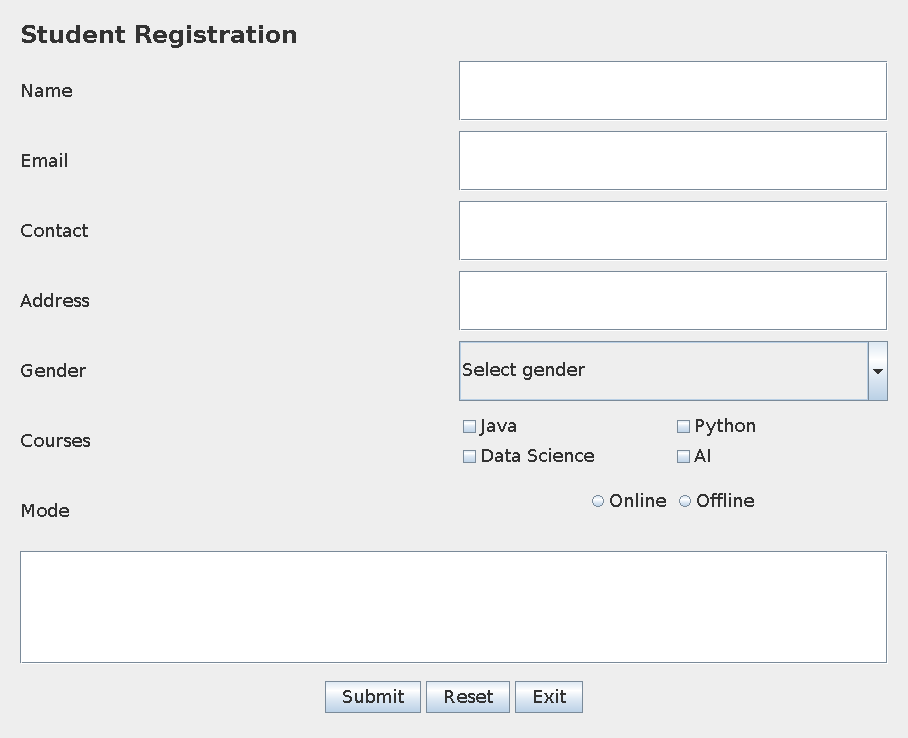
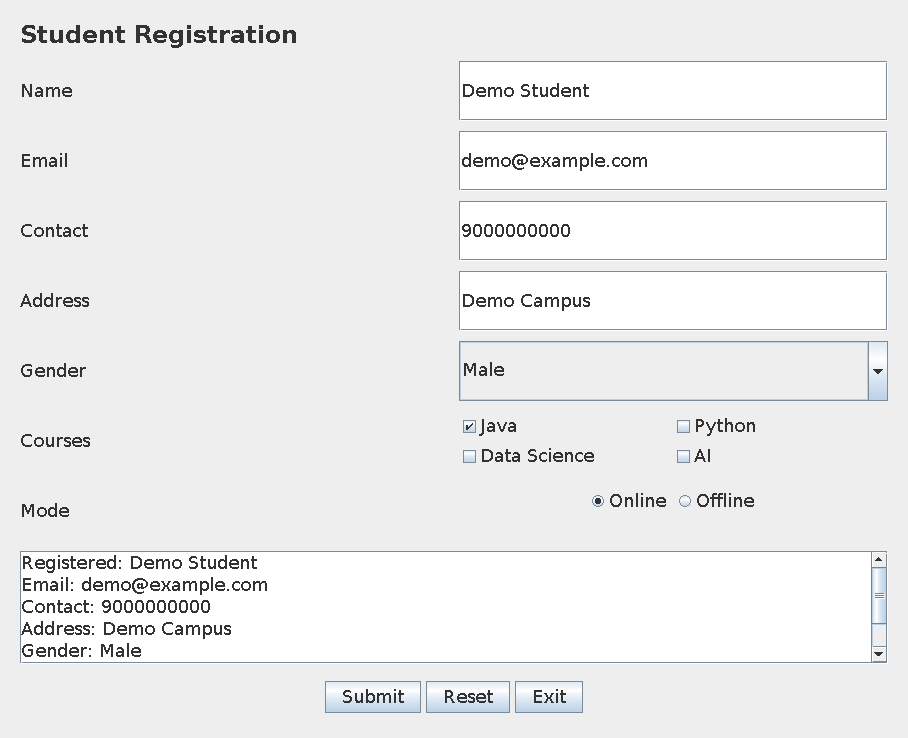
GUI preview & checks
These panels were rendered from this exact Java source. Event handlers were checked without a desktop window; window decorations and native error-dialog appearance can differ on your computer.
Try these checks
- A blank Submit asks for text fields.
- A completed demo record selecting Java and Online produces a visible registration summary.
- Checking Python as well selects an additional course without removing Java.
- Reset restores blank fields, placeholder gender and no mode/course choices.
Common mistakes
- Courses use checkboxes; learning mode uses one radio group.
- Clear the combo-box placeholder on validation, not by assuming its first item is valid.
- Close the window rather than abruptly altering website state.
WHY THIS GROWTH RATE?
Time and space complexity
O(F+C+T) validation/summary work for F fields, C course choices and T text characters.
The handler visits each field and checkbox and examines entered text. The example fixes four fields and four courses, leaving text length as the main variable in this small form.
Output, layout and painting are additional framework work. No database search or network submission occurs.
These bounds describe the implemented data processing. Input/output text length, scheduling, framework rendering and runtime/library internals are identified separately where they matter. Educational limits bound the actual examples.
PREPARE FOR YOUR LAB VIVA
Related viva questions & answers
Try answering aloud, then expand to check your reasoning. Questions focus on this program’s classes, state and behavior.
Why are course choices JCheckBox controls?
A student can select several courses simultaneously. Checkboxes support independent selections, unlike a single mutually exclusive radio group.
Why is a ButtonGroup used for Online and Offline?
The syllabus treats the learning mode as one choice. The group prevents both modes from remaining selected at the same time.
Why does the gender combo box start with Select gender?
It provides an unchosen placeholder. Validation can detect that the student has not made a deliberate selection yet.
What is the scope of the email check in this form?
It checks a basic address shape for the demonstration. It does not verify that the address exists or that the student owns it.
Why does Reset clear output as well as inputs?
The displayed summary belongs to the prior submitted values. Clearing it prevents an old summary from being mistaken for the newly reset form’s state.
What does the Exit button do in this implementation?
It finds and disposes the containing Swing window. The demonstration has no persistent record or remote session to modify.