THE SYLLABUS TASK
What you need to build
Write a java program that simulates a traffic light. The program lets the user select one of three lights: red, yellow, or green. When a radio button is selected, the light is turned on, and only one light can be on at a time No light is on when the program starts.
Full syllabus requirements: classes, fields and methods
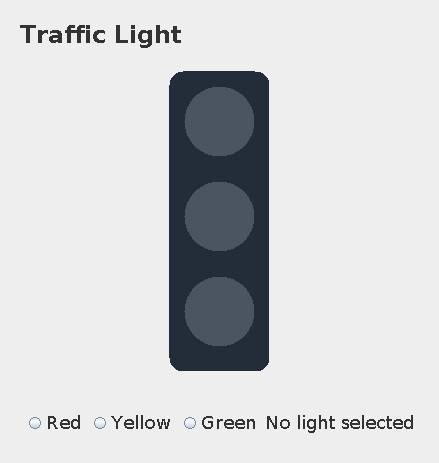
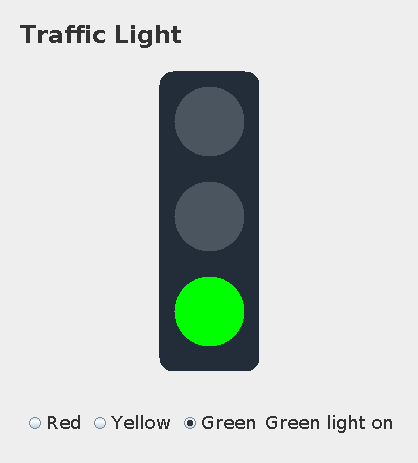
Desktop interaction. No radio button is selected at startup, so all lamps are dim. Selecting Red, Yellow or Green turns on exactly that lamp and updates the status label.
UNDERSTAND THE IDEA
Explanation
A ButtonGroup keeps the three choices mutually exclusive, but no initial choice is forced. The drawing panel stores the selected name and paints the corresponding lamp brightly.
Action listeners change the model and call repaint. paintComponent first lets Swing clear/paint the background, then draws the housing and lamps using current state.
TURN THE IDEA INTO STEPS
Step-by-step algorithm
- Create three grouped radio buttons with none selected.
- Start the light model with an empty selected string.
- On selection, update the model and status.
- Request repaint.
- Draw only the selected lamp brightly.
SEE THE CORE OPERATION
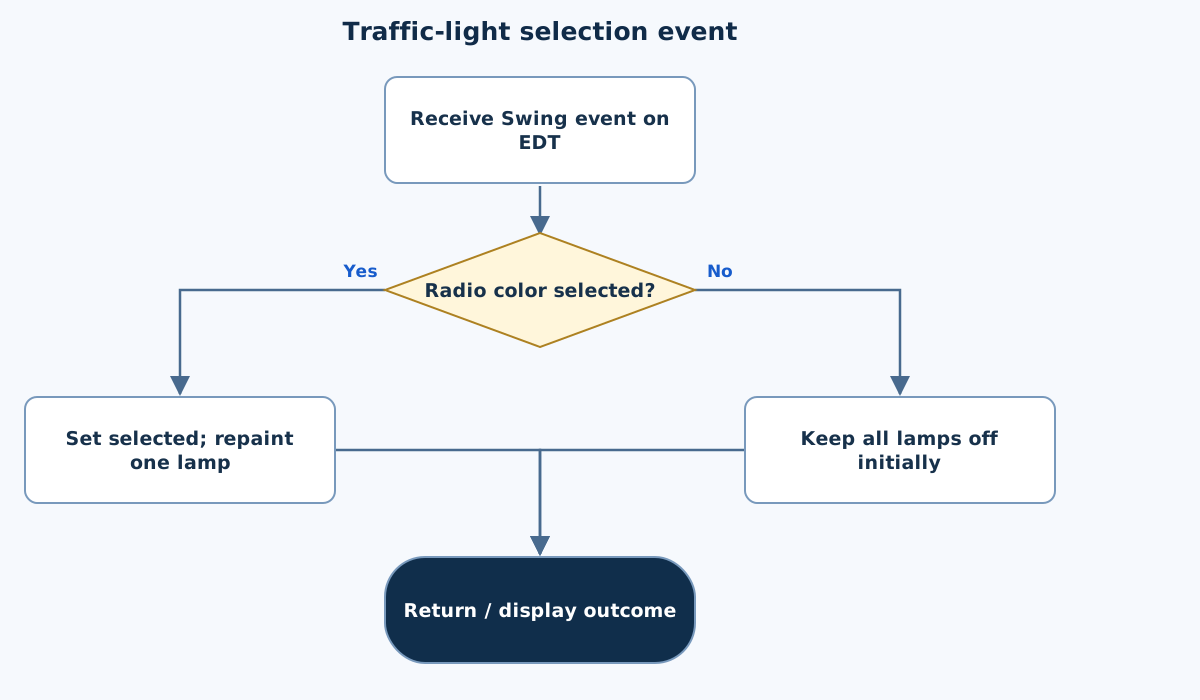
Flowchart
This chart focuses on the named operation or core OOP decision. Diamonds show conditions; labeled branches show outcomes. Read it with the complete algorithm and source for input handling and other operations. Scroll within the diagram on a phone.
Traffic-light selection event
Main.java
import javax.swing.*;
import java.awt.*;
import java.awt.event.*;
import java.util.Locale;

public class Main {
    static JPanel root(String title) {
        for(String key:new String[]{"Label.font","Button.font","RadioButton.font","CheckBox.font","TextField.font","TextArea.font","ComboBox.font"})UIManager.put(key,new Font(Font.SANS_SERIF,Font.PLAIN,18));
        JPanel panel=new JPanel(new BorderLayout(12,12));panel.setBorder(BorderFactory.createEmptyBorder(20,20,20,20));
        JLabel heading=new JLabel(title);heading.setFont(new Font(Font.SANS_SERIF,Font.BOLD,24));panel.add(heading,BorderLayout.NORTH);return panel;
    }
    static void show(String title,JPanel panel) {
        JFrame frame=new JFrame(title);frame.setDefaultCloseOperation(JFrame.EXIT_ON_CLOSE);frame.setContentPane(panel);frame.pack();frame.setLocationRelativeTo(null);frame.setVisible(true);
    }

    static class Lights extends JPanel {
        private static final long serialVersionUID=1L;
        String selected="";Lights(){setPreferredSize(new Dimension(320,330));}
        @Override protected void paintComponent(Graphics g){
            super.paintComponent(g);int x=(getWidth()-100)/2;g.setColor(new Color(35,45,58));g.fillRoundRect(x,10,100,300,28,28);
            String[] names={"Red","Yellow","Green"};Color[] colors={Color.RED,Color.YELLOW,Color.GREEN};
            for(int i=0;i<3;i++){g.setColor(selected.equals(names[i])?colors[i]:new Color(75,85,95));g.fillOval(x+15,25+i*95,70,70);}
        }
    }
    public static JPanel createPanel(){
        JPanel panel=root("Traffic Light");Lights lights=new Lights();lights.setName("lights");panel.add(lights,BorderLayout.CENTER);
        ButtonGroup group=new ButtonGroup();JPanel controls=new JPanel();JLabel status=new JLabel("No light selected");status.setName("status");
        for(String name:new String[]{"Red","Yellow","Green"}){JRadioButton button=new JRadioButton(name);group.add(button);controls.add(button);button.addActionListener(e->{lights.selected=name;status.setText(name+" light on");lights.repaint();});}
        controls.add(status);panel.add(controls,BorderLayout.SOUTH);return panel;
    }
    public static void main(String[] args){SwingUtilities.invokeLater(()->show("Traffic Light",createPanel()));}

}
Copy a source file or download the project to preserve its file names.
USE THE RIGHT ENVIRONMENT
How to compile and run
Install a JDK (Java 11 or newer; JDK 17 is suitable), extract this project’s ZIP into its own folder, then open a terminal in that folder.
javac -encoding UTF-8 Main.java
java Main
This program opens a Swing desktop window. Run on your computer with a graphical desktop. A browser compiler or headless server cannot normally display this window. No console sample input is required.
Each experiment has its own folder because many use the public class Main. Compile and run one experiment at a time.
UNDERSTAND THE JAVA CODE
Line-by-line explanation
These steps follow the exact Java source above. Related statements are grouped; line numbers count blank lines and restart for each file. Start with main to follow execution, then open the constructors, methods or event handlers it uses.
Main.java
Lines 1–6Import Swing components, layouts and event types
import javax.swing.*;
import java.awt.*;
import java.awt.event.*;
import java.util.Locale;

public class Main {
javax.swing supplies buttons, labels, panels and frames. java.awt supplies layouts, colours and fonts. java.awt.event supplies listener/event types. Locale is available where text formatting needs it. Main matches the source filename.
Lines 7–8Set readable component fonts in a reusable panel helper
    static JPanel root(String title) {
        for(String key:new String[]{"Label.font","Button.font","RadioButton.font","CheckBox.font","TextField.font","TextArea.font","ComboBox.font"})UIManager.put(key,new Font(Font.SANS_SERIF,Font.PLAIN,18));
root configures the selected UIManager font keys to an 18-point sans-serif font before creating the form’s components. This affects the Java application, not the website’s CSS.
Lines 9–11Create a padded root panel with a heading
        JPanel panel=new JPanel(new BorderLayout(12,12));panel.setBorder(BorderFactory.createEmptyBorder(20,20,20,20));
        JLabel heading=new JLabel(title);heading.setFont(new Font(Font.SANS_SERIF,Font.BOLD,24));panel.add(heading,BorderLayout.NORTH);return panel;
    }
BorderLayout places the heading in NORTH and leaves CENTER for each experiment’s form. The empty border adds padding; the heading uses a larger bold font. Return the JPanel for further assembly.
Lines 12–14Show the completed panel in a desktop window
    static void show(String title,JPanel panel) {
        JFrame frame=new JFrame(title);frame.setDefaultCloseOperation(JFrame.EXIT_ON_CLOSE);frame.setContentPane(panel);frame.pack();frame.setLocationRelativeTo(null);frame.setVisible(true);
    }
show creates a JFrame, installs its content, packs it to component sizes, centres it and makes it visible. EXIT_ON_CLOSE ends this demonstration application when its window closes. The desktop main calls this helper on the event-dispatch thread.
Lines 16–18Create a custom panel with initially no active light
    static class Lights extends JPanel {
        private static final long serialVersionUID=1L;
        String selected="";Lights(){setPreferredSize(new Dimension(320,330));}
Lights extends JPanel, declares a serialization identifier and stores the selected colour name. The constructor sets a preferred drawing size; an empty selected string leaves all lights inactive initially.
Lines 19–20Clear the old drawing and paint the signal housing
        @Override protected void paintComponent(Graphics g){
            super.paintComponent(g);int x=(getWidth()-100)/2;g.setColor(new Color(35,45,58));g.fillRoundRect(x,10,100,300,28,28);
paintComponent overrides Swing’s drawing hook. Call super first, calculate a centred x position and fill a rounded dark rectangle. Swing calls this method when repainting is needed; user code does not call it directly.
Lines 21–24Draw the selected lamp brightly and the others dimly
            String[] names={"Red","Yellow","Green"};Color[] colors={Color.RED,Color.YELLOW,Color.GREEN};
            for(int i=0;i<3;i++){g.setColor(selected.equals(names[i])?colors[i]:new Color(75,85,95));g.fillOval(x+15,25+i*95,70,70);}
        }
    }
Parallel arrays map Red, Yellow and Green to Color values. Loop through three positions, choose bright colour only for the selected name, and fill each circle. The braces close the paint method and Lights class.
Lines 25–27Place the signal and prepare exclusive radio controls
    public static JPanel createPanel(){
        JPanel panel=root("Traffic Light");Lights lights=new Lights();lights.setName("lights");panel.add(lights,BorderLayout.CENTER);
        ButtonGroup group=new ButtonGroup();JPanel controls=new JPanel();JLabel status=new JLabel("No light selected");status.setName("status");
createPanel creates Lights, names it for tests and adds it to CENTER. A ButtonGroup allows only one signal selection. The status label initially says no light is selected.
Line 28Change state in the listener and request repainting
for(String name:new String[]{"Red","Yellow","Green"}){JRadioButton button=new JRadioButton(name);group.add(button);controls.add(button);button.addActionListener(e->{lights.selected=name;status.setText(name+" light on");lights.repaint();});}Each radio-button lambda saves its own colour name into lights.selected, updates the status and calls repaint. repaint requests a later paintComponent call rather than drawing directly inside the action listener.
Lines 29–30Finish and return the interactive panel
        controls.add(status);panel.add(controls,BorderLayout.SOUTH);return panel;
    }
Add status to the controls, place them in SOUTH, then return panel. Button events can update the same Lights object after createPanel has returned.
Lines 31–33Create and show Swing UI on the event-dispatch thread
    public static void main(String[] args){SwingUtilities.invokeLater(()->show("Traffic Light",createPanel()));}

}
SwingUtilities.invokeLater schedules the lambda on Swing’s event-dispatch thread. The lambda creates the panel and calls show. This main needs a graphical desktop; the panel and its event handlers are separate from console input.
FOLLOW THE STATE
Dry run
- At startup, selected is empty and no lamp is on.
- Click Red: the red lamp lights.
- Click Green: the group clears Red and the green lamp lights.
- Only one selected color is painted at a time.
CHECK THE BEHAVIOUR
GUI preview & checks
These panels were rendered from this exact Java source. Event handlers were checked without a desktop window; window decorations and native error-dialog appearance can differ on your computer.
Try these checks
- At startup, selected is empty and no lamp is on.
- Click Red: the red lamp lights.
- Click Green: the group clears Red and the green lamp lights.
- Only one selected color is painted at a time.
Common mistakes
- Do not preselect a light at startup.
- Use repaint rather than drawing directly from the button listener.
- Call super.paintComponent before custom drawing.
WHY THIS GROWTH RATE?
Time and space complexity
O(1) application state update and three-lamp drawing per repaint.
The number of lights is fixed at three. A selection changes one String field and draws a fixed number of shapes.
Actual repaint scheduling and rasterization depend on Swing and display conditions, not on a growing collection of lamps in this exercise.
These bounds describe the implemented data processing. Input/output text length, scheduling, framework rendering and runtime/library internals are identified separately where they matter. Educational limits bound the actual examples.
PREPARE FOR YOUR LAB VIVA
Related viva questions & answers
Try answering aloud, then expand to check your reasoning. Questions focus on this program’s classes, state and behavior.
Why are all lamps off when the program starts?
The selected state is empty and no radio button is preselected. The painting logic therefore uses dim colors for all three lamps.
Does creating a ButtonGroup automatically select its first button?
No. It enforces exclusivity once a selection exists, but does not force an initial selection by itself.
Why does a selection call repaint?
It asks Swing to render the updated model on its normal painting path. Directly drawing from the event handler would not reliably survive later repainting.
Why is super.paintComponent called first?
It lets the Swing component paint its background correctly. Skipping it can leave stale pixels or visual artifacts when the panel redraws.
How does the lamp renderer know which color to brighten?
It compares each lamp’s name with the selected state. Only the matching lamp receives its bright color.
Why is the housing positioned from getWidth rather than a fixed x coordinate?
The panel can resize with its window. Computing the horizontal position from current width keeps the housing centered as that size changes.